ProFundCom Product & Service Notification 28th July 2025
As a user of the ProFundCom platform, we want to notify you that it has undergone some changes. We will send these notifications every time the platform is updated.
Sunset Contacts Impact: Medium Sections: Send Wizard Description: You are now able to sunset contacts in the Send Wizard. These are contacts that have not engaged with you in the last 12 months but this can be configured. This can then be used as part of a re-engagement campaign. Here are the following reasons why sunsetting contacts is important.
1. Improves Deliverability Rates – ISPs (like Gmail, Outlook, etc.) track engagement. If you’re constantly emailing unengaged or inactive users, your sender reputation drops. This leads to more emails landing in spam folders — even for your engaged users.
2. Boosts Engagement Metrics – Removing unengaged contacts increases your open rates, click-through rates, and conversion rates, making your campaigns look healthier and more effective.
3. Ensures Compliance (GDPR, CAN-SPAM, etc.) Regulations often require you to not email people indefinitely without engagement or renewed consent. Sunsetting helps you stay compliant by respecting users’ implied disinterest or lack of interaction.
5. Keeps Your Database Clean – Inactive contacts can clutter your CRM or email platform, making segmentation and analysis more difficult. A clean list helps you target and personalize more effectively.
6. Reflects Better on Brand Reputation – Constantly pinging users who aren’t interested can feel spammy. Respecting their disinterest shows you’re a thoughtful brand.
‘Invite Only’ changed to ‘Restrict Registration’ Impact: Medium Sections: Event Manager
Previously, an event could be set to ‘invite only’ by ticking a box. This would only show the event page if an attendee used the personalised link in their invite email. It also made the email address field in the registration form read-only to prevent non-invited people registering.
With the new ticket types, this had been expanded to add more options:
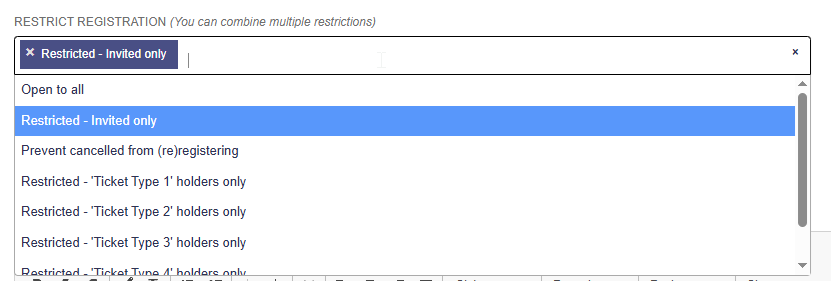
The field is now named ‘Restrict Registration’
Instead of an on/off checkbox, there is now a multiselect widget which allows multiple options to be chosen.
You existing behaviour is still in place – if ‘invite only’ was disabled, you will now see the option ‘Open To All’ selected. If it was enabled, you’ll see ‘Restricted – Invite Only’ selected. The behaviour of these is unchanged.
You can now prevent Cancelled people from re-registering
You can restrict registration to existing holders of specific ticket types. This is useful if the new Waitlist ticket is used – you can open a second round of registration to allow existing Waitlist holders to register themselves.
You can combine the options, they are treated as inclusive ‘OR’. For example, you could have ‘Invite Only’ combined with ‘Waitlist ticket holders’ to allow either to register.
The field uses a Multiselect widget. You can choose options to add them to the list, or click the ‘X’ to remove them.
Removing all the options will automatically re-select the ‘Open To All’ option.
You cannot combine ‘Open To All’ with any of the other options – If you select one of the other options the ‘Open To All’ will be deselected and vice-versa.
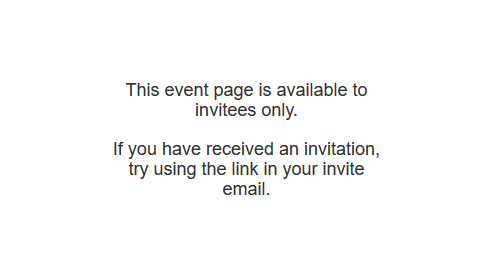
If someone attempt to view the event page when they are not eligible, they will see this:
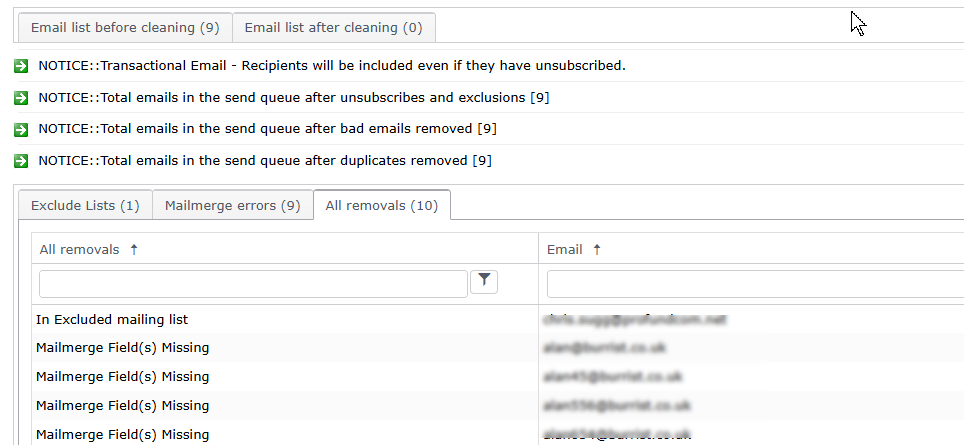
The Send Wizard will now check for missing mailmerge fields in the last step, and exclude them from the send.
If you add mailmerge fields to your template and the chosen list of recipients would mean that the field is blank, the system will now highlight them in the last step of the Send Wizard.
You can then either fix them and refresh the page, or choose to continue and the system will remove those emails from the send.
If any are found, they will be added to the ‘Mailmerge Errors’ tab in the removals table. The will also be in the ‘All Removals’ tab along with the other errors.
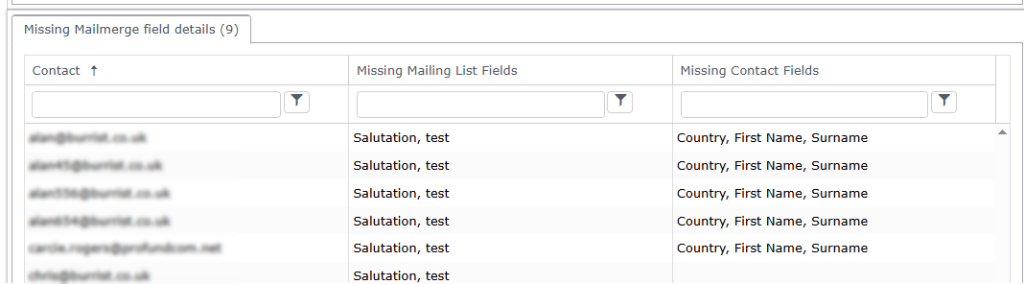
Details of which fields were found to be missing will be shown below the removals table – only the title bar is shown by default, click it to show the table.
It will show each contact, along with which fields were missing and whether the system was expecting them to be part of the mailing list, or look them up in the Contact details.
‘Salutation’ is a special case – it can be specified in a mailing list to use as a mailmerge field, but if it’s blank in the mailing list the system can look it up from the Contact Details or even from other Mailing Lists where it is populated. The Mailmerge check will take this into account and only flag the Salutation if it can’t be found by any method.
You can keep the Send Wizard window open, fix any issue with the contact details – for example add a missing field in Salesforce if you have that Integration, and wait a minute or two for the update to sync through from there. Then once that’s done refresh the Wizard page with F5 to recalculate the removals and see if that fixed it.