

As a user of the ProFundCom platform, we want to notify you that it has undergone some changes. We will send these notifications every time the platform is updated.
Drag & Drop Editor Tables
Impact: Medium
Sections: Drag and Drop Editor
Description:
The tables plugin has been updated to simplify it, and allow better control over borders.
There were a number of settings which would work in the browser but didn’t work across all email applications. These have been removed, or where they were important, they have been tweaked to use a method which does work consistently in email.
The main change you’ll see is that on creation a new table now appears borderless.
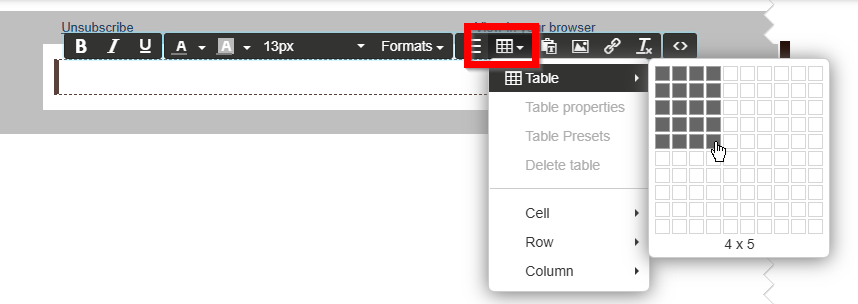
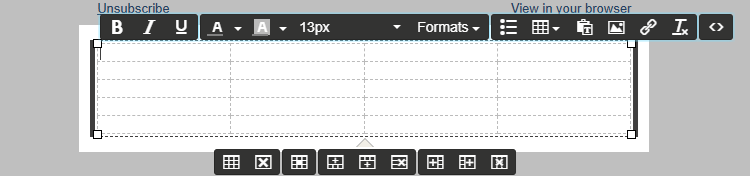
As before, cells without borders have thin dashed lines in the edtor to make them easier to see, but these will not appear in the final email, or in the editor preview window if you have it open.
You can tell when you have a table selected by the four control squares in each corner.
There are three ‘levels’ of properties which can be changed, reached either through the table button in the top toolbar, or in the toolbar which appears when a table is selected.
Table Properties
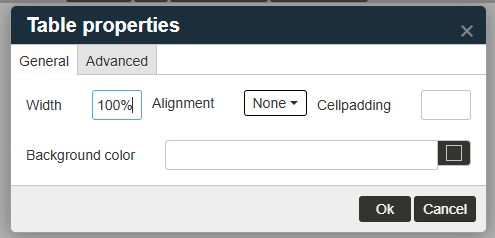
Width: A percentage denoting how much of the page width a table takes up. Default is 100%, the full width of the text block.
Alignment: How the table sits horizontally within the page. Choose from none, left, right or centred. Note the different settings will only be noticeable when the width is less than 100%.
Cellpadding: How much space is left between the cell contents. You can use this setting to stop adjacent cells’ content from touching. You can also set this for individual cells in the Cell Properties.
Background colour: Sets the background colour for the whole table. Individual cells can be set in the Cell Properties.
Row Properties
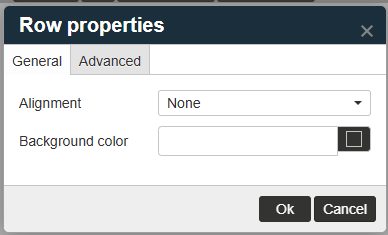
This is rarely used – as all of its functionality is better served by the Cell Properties window, but it’s included here for completeness.
- Alignment: Wheras the Table alignment moves the whole table, this setting chooses how the text is aligned within the cells.
- Background Colour: The background colour for a whole row can be set here. Individual cells can be set in the Cell Properties.
Cell Properties
General tab
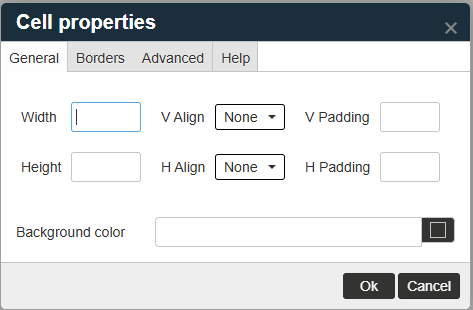
- Width/Height: Allows you to set the dimensions of a cell. Note that a column will automatically try to expand to the widest cell, and a row to the tallest cell. You can also drag the row/column boundaries in the table itself to set the height & width, which is often easier.
- V Align/H Align: Sets how the cell content will sit vertically and horizontally in the cell.
- V Padding/H Padding: Allows you to set a vertical and horizontal gap between the content and the cell edge. This will override any setting in the Table Properties, for the selected cells.
Background Colour: Set the background colour for just the selected cells.
Borders tab
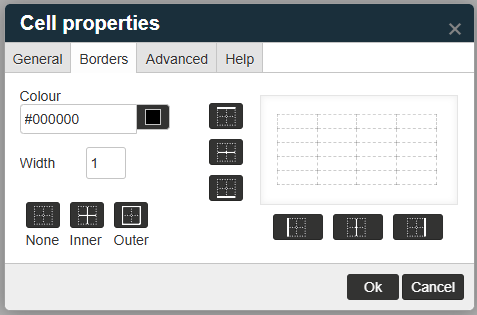
This tab allows borders to be set for individual cells. A preview containing the selected cells will be shown.
- You can set a colour and a width, then click the button to apply that to individual borders.
- The buttons next to the preview panel will allow you to change the top/inner/bottom horizontal borders, and the left/inner/right vertical borders separately.
- There is also an ‘inner’ and ‘outer’ button to set both horizontal and vertical at the same time.
- The buttons act as a toggle, so the second click of a button will remove the border from its respective edge.